Managing a WooCommerce store comes with its share of challenges, especially when dealing with spam orders and fake registrations. One smart way to protect your store is to Block Spam Email Addresses. With the help of tools like Aelia’s Blacklister plugin, you can easily stop suspicious emails and domains from checking out or registering on your site, keeping your store safe and efficient.
In addition to securing your checkout, properly configuring your shipping options is another crucial part of store management. If you’re looking to expand globally, check out this guide on setting up WooCommerce shipping zones for international shipping to streamline your shipping strategy.
In this guide, we’ll walk you through how to block email addresses in WooCommerce, including how to configure the plugin, why it matters, and the benefits of keeping your checkout spam-free.
Understanding How to Block Email Addresses in WooCommerce Using Blacklister
Running a WooCommerce store means staying one step ahead of spammy signups and fraudulent orders. One effective way to boost your store’s security is by blocking suspicious or unwanted email addresses,and that’s where the Blacklister for WooCommerce plugin comes in.
With Blacklister for WooCommerce, you can prevent specific users from completing registrations or making purchases by blocking email addresses or entire domains. Whether you’re dealing with spam bots, repeat offenders, or known scammers, this plugin gives you the control you need to keep your store safe and clean.
How Blacklister Works
The plugin makes it easy to restrict access with just a few steps:
- Install the Plugin
Download the Plugin from Aelia and install it directly through your WordPress dashboard. - Activate It
Head to your Plugins screen and activate Blacklister for WooCommerce like any standard plugin. - Set Your Rules
Navigate to WooCommerce > Blacklister to add specific email addresses or domains (like[email protected]or@maliciousdomain.com) to your blacklist.
When someone tries to place an order using a blocked email, they’ll be shown a custom error message and stopped from proceeding. This helps prevent fraud and keeps your genuine customer experience uninterrupted.
Bulk Blocking Made Easy
For stores that handle high volumes of traffic,or those frequently targeted by fraud,Blacklister also supports bulk uploading of email addresses. This feature is a game-changer for admins who need to implement extensive blacklists quickly and efficiently.
Key Features of Blacklister for WooCommerce
| Feature | Details |
|---|---|
| Easy Setup | User-friendly interface for simple installation and configuration. |
| Custom Error Messages | Create tailored messages for blocked users to maintain a professional tone. |
| Bulk Email Blocking | Upload multiple email addresses or domains at once. |
| Flexible Compatibility | Works seamlessly with standard WooCommerce checkout flows. |
| Security Boost | Reduces the risk of spam orders and account misuse. |
Why Blocking Emails Matters for Your WooCommerce Store
Implementing email blocking through Blacklister isn’t just about stopping spam,it’s a strategic move that delivers long-term value:
🔐 Better Store Security
Blocking suspicious emails minimizes threats from fraudulent users, keeping your business and customer data safe.
🧹 Fewer Spam Orders
Reduce order clutter and focus on fulfilling real purchases,saving time and resources.
🌟 Protect Your Reputation
A clean, trustworthy store environment builds customer confidence and encourages positive reviews.
📦 Streamlined Order Management
With fewer bad orders in the system, your team can focus on legitimate transactions.
🎯 Personalized Error Messaging
Let unauthorized users know they’re blocked without compromising your store’s branding or tone.
📁 Effortless List Management
Use bulk tools to manage extensive blacklists with ease,perfect for high-traffic or global stores.
💸 Lower Operational Costs
Avoid chargebacks and fraudulent transaction fees by preventing suspicious activity before it starts.
🔍 GDPR & Compliance-Friendly
Blocking known offenders helps maintain compliance with data protection and customer privacy standards.
🧩 No Coding Required
Blacklister integrates smoothly into WooCommerce, offering powerful protection without complex setup.
🤝 Builds Customer Trust
A well-protected shop builds loyalty and peace of mind for every visitor.
Introduction to Aelia Blacklister for WooCommerce
Aelia Blacklister Plugin is a powerful tool designed to protect your online store by blocking unwanted orders based on flexible, rule-based filters. Whether you’re dealing with repeat fraud attempts, spam purchases, or high-risk users, this plugin gives you full control over who can and cannot complete an order.
🔒 What Does Blacklister Do?
Aelia Blacklister enables WooCommerce store owners to block transactions from specific visitors by matching their details against customizable rules. These rules can be created based on:
- Customer Name or Surname
- Email Address
- Phone Number
- Billing or Shipping Address (Street, Postcode, City, State, Country)
- IP Address
You can create exact matches or set up partial matches using regular expressions (for text fields) and IP masks or ranges (for IP filtering).
This gives you fine-tuned control over who can place orders, helping to reduce fraud, improve operational efficiency, and protect your revenue.
Setting Up Aelia to Block Email Addresses
To effectively block email addresses in WooCommerce while using Aelia, integrate the “Aelia Blacklister” plugin. Follow these steps to set up the necessary plugins and configure the blocking settings.
Step 1: Install the Plugin
- Go to the Plugins section of your WordPress dashboard.

- Click on Add New Plugin
- Select Upload Plugin
- Click Choose File, then select the Aelia Blacklister plugin zip file you downloaded from the Aelia website.
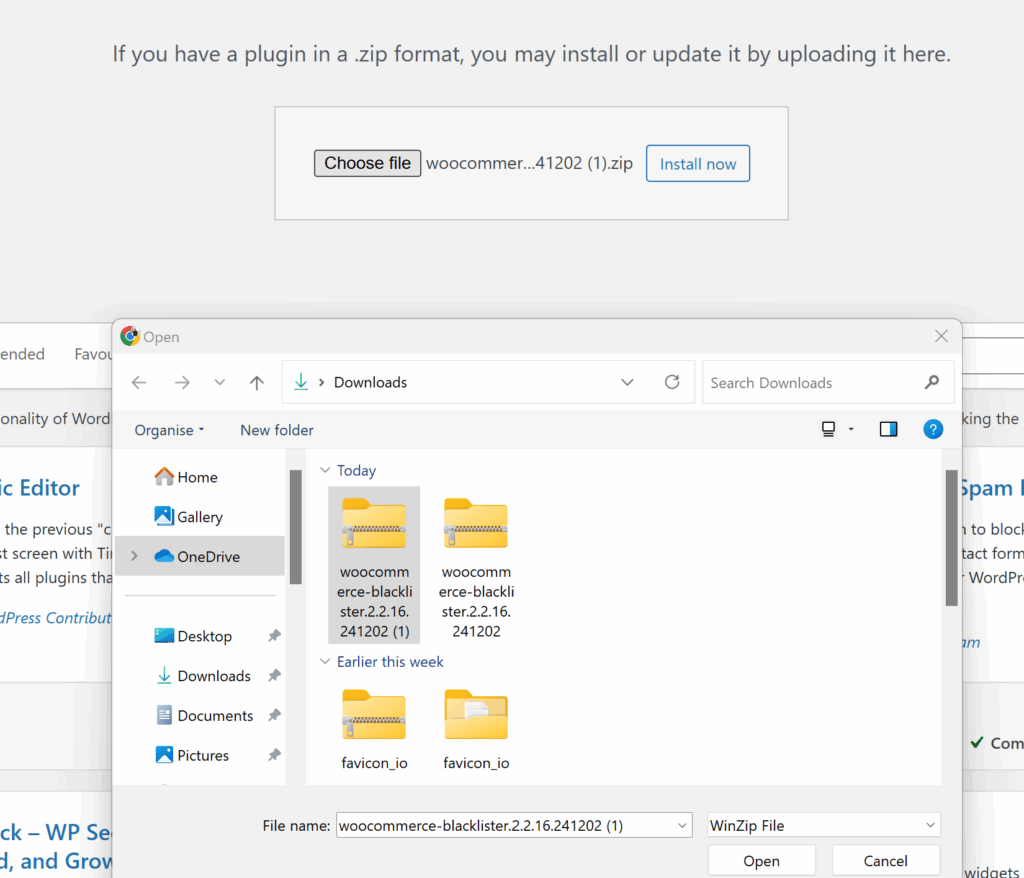
- Click Install Now.
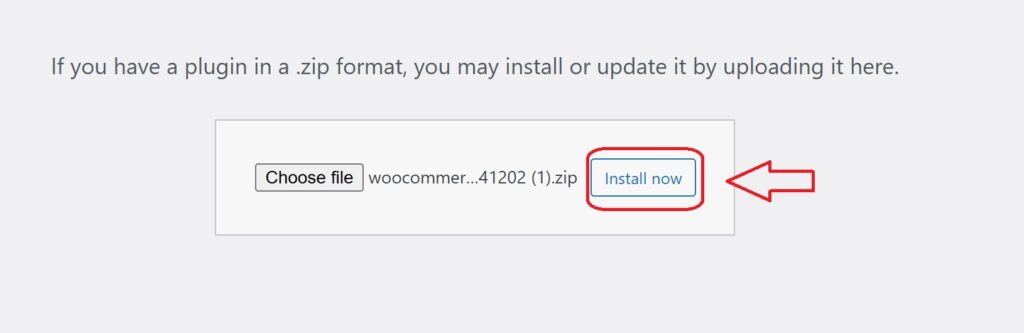
- Once the plugin is installed, click Activate.
Step 2: Access the Plugin Settings
- After activation, go to WooCommerce and click on it.

- Look for the Blacklister tab in the settings menu (it might appear under the Aelia tab depending on the version of WordPress).
- Click on the Blacklister tab to access the plugin’s settings.
Step 3: Block Email Addresses
- In the Blacklister settings, find the option called Blacklisted email addresses.

- Enter the email addresses you want to block in the provided text field (you can block multiple email addresses by separating them with commas or entering them one by one).

- After entering the email addresses, Scroll Down and click Save Changes.

Step 4: Test the Configuration
- Go to your WooCommerce checkout page.
- Try to register or make a purchase using one of the blacklisted email addresses.
- If the plugin is correctly set up, the user will not be able to complete the purchase or registration.
How to Get Support for Aelia Blacklister For WooCommerce Plugin

You can easily access support directly from the Blacklister for WooCommerce plugin. Simply navigate to the Support section within the plugin settings, where you can submit your issue or describe the problem you’re facing in the comment section. Once submitted, a member of Aelia’s support team will promptly review your message and provide personalized assistance. This ensures quick resolution of any concerns. To further enhancing your WooCommerce store’s functionality, consider checking out the Tax Display by Country for WooCommerce, which provides a seamless way to manage tax visibility based on the customer’s location, ensuring a smoother shopping experience.
