Block Fraudsters from Your WooCommerce from fraud and fake orders is essential for maintaining a secure and trustworthy shopping experience. One effective way to enhance your store’s defenses is by using the Aelia Plugin feature in combination with powerful blacklist tools. By filtering out suspicious activity based on IP addresses, email accounts, or geographic data, you can significantly reduce the risk of unauthorized access and fraudulent transactions.
Setting up a blacklist is simple thanks to a wide range of tools available in the WordPress ecosystem. A standout option is the Aelia Blacklister for WooCommerce, a robust plugin that lets you block orders based on customer name, email, address, phone number, or IP. This targeted approach ensures that bad actors are stopped before they can complete checkout, helping to maintain the integrity of your store.
For an even more secure and customer-friendly setup, consider pairing your blacklist with an allow list,welcoming only verified, trusted users. This two-pronged strategy strengthens your defenses while preserving a smooth checkout experience for real customers.
To take it a step further, optimize your storefront for international shoppers by integrating the currency converter WooCommerce plugin. This tool enables country-specific pricing, which not only enhances localization but also works hand-in-hand with your fraud-prevention setup, delivering a seamless and secure buying journey across regions.
Importance of Protecting Your WooCommerce Store
Securing your WooCommerce store is essential for maintaining trust, ensuring smooth operations, and protecting your revenue. As your online presence grows, so does the risk of encountering spam orders, fake customer data, and fraudulent transactions. Without the right protection, your business could face chargebacks, loss of reputation, and serious operational disruptions. That’s why it’s critical to implement proactive security measures,from blacklisting suspicious users to customizing your store for a safer, more user-friendly checkout experience. To further optimize your store’s look and functionality, you can consider using WordPress themes, which enhance user experience while maintaining security.
Here are some key reasons why store protection should be a top priority:
- Prevents Fraudulent Orders: Blocks suspicious emails, IPs, and users before they can cause harm.
- Safeguards Customer Data: Protects sensitive information from potential breaches or misuse.
- Reduces Operational Hassles: Saves time and resources by eliminating fake or spam transactions.
- Maintains Store Reputation: Builds trust with customers by showing you value security and privacy.
- Boosts Checkout Efficiency: Streamlines the purchase process for real customers by filtering out bad actors.
- Supports Customization: Enhancing user experience through personalized settings helps reinforce authenticity. For instance, you can customize WooCommerce country names to ensure checkout displays look clean, localized, and professional.
Protecting your WooCommerce store goes beyond plugins,it’s about creating a safe, smooth, and trustworthy shopping environment that encourages long-term growth.
Setting Up Aelia Blacklister for WooCommerce
The Aelia Blacklister plugin allows you to easily manage and block specific customers based on various criteria, such as IP addresses, email addresses, phone numbers, and shipping addresses. By setting up Blacklister, you can improve your WooCommerce store’s security and prevent fraudulent or unwanted transactions.
Here’s a step-by-step guide:-
Step 1: Install and Activate the Plugin
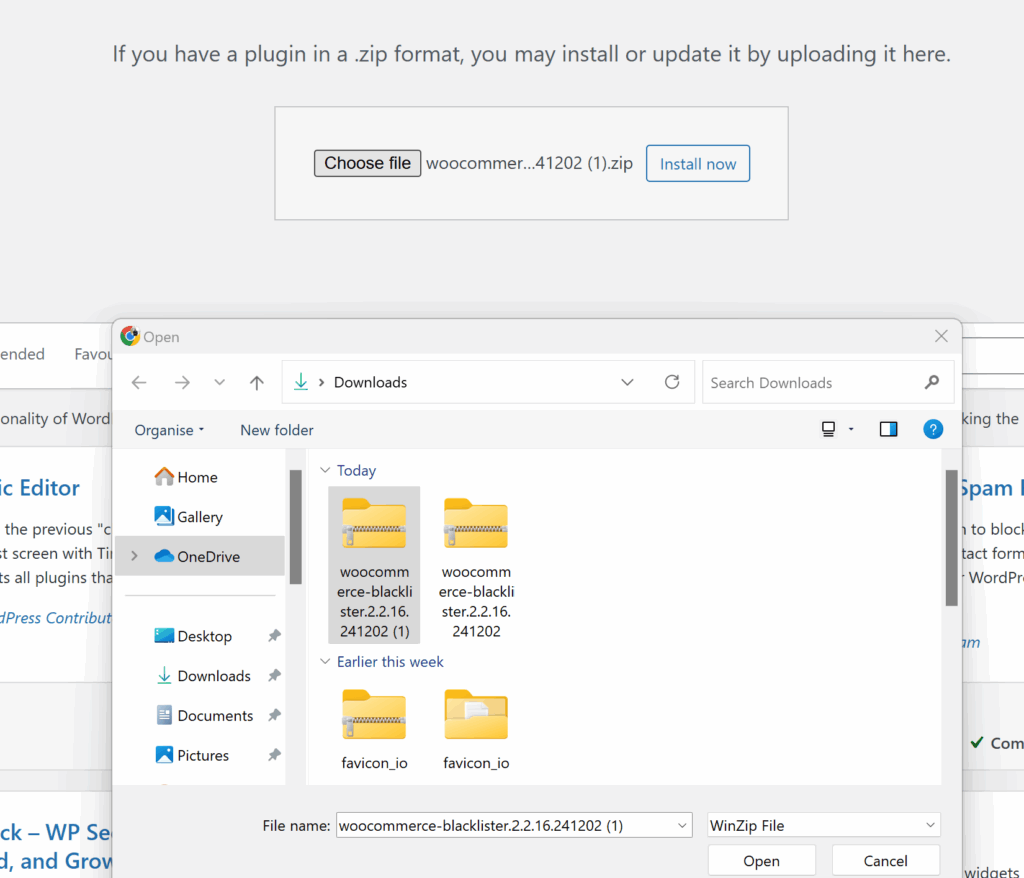
- Download the Plugin: First, purchase and download the plugin from Aelia
- Upload the Plugin: In your WordPress admin panel, go to Plugins > Add New > Upload Plugin. Select the downloaded .zip file and click Install Now.
- Activate the Plugin: After installation, click Activate to enable the plugin on your store.
Step 2: Access the Aelia Blacklister Settings
- Once the plugin is activated, navigate to WooCommerce > Settings in your WordPress dashboard.
- You will see a new tab titled Aelia Blacklister. Click on it to access the plugin’s settings.
Step 3: Define Blacklist Rules

- Add Blacklist Entries: In the Aelia Blacklister settings, you’ll find options to add rules for blocking customers based on various fields:
- Customer’s Name and Surname: Using regular expressions, you can block customers based on their full name or partial matches.
- Customer’s Address: Block customers from specific cities, states, or countries by setting the corresponding address field.
- Customer’s Email Address: Block specific email addresses or domains to prevent unwanted customers from completing the checkout process.
- Customer’s Phone Number: Block phone numbers from specific regions or individual numbers associated with suspicious behavior.
- Customer’s IP Address: Block specific IP addresses, or use IP address masks to block ranges of IPs.
- You can configure these Blacklist criteria using exact matches or partial matches (with regular expressions for all fields except IP addresses).
- Set Match Criteria: Decide whether you want to block customers based on exact matches or partial matches:
- Exact Match: The customer’s information must exactly match the Blacklisted data.
- Partial Match: Use regular expressions to match parts of a customer’s information, such as a domain name in an email address.
Step 4: Configure Error Messages
- Custom Error Messages: Customise the error message that will be shown to customers when they attempt to place an order using Blacklisted details. This ensures clear communication with blocked users about why their order could not be completed.
Step 5: Save Settings
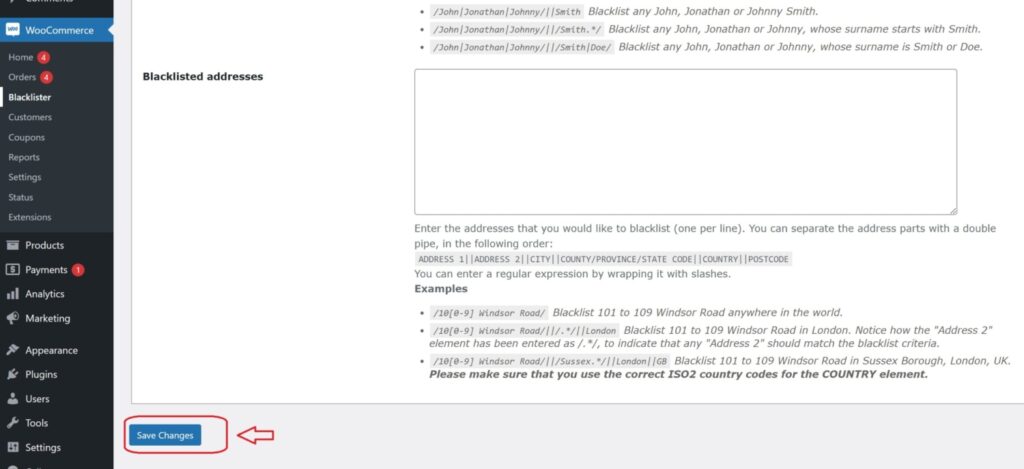
- After defining your Blacklist rules and customising error messages, click Save Changes to apply the settings.
Step 6: Test Blacklist Functionality
- To verify that the Blacklist is working properly, try to complete an order using details that match the blocked information (such as an email address, phone number, or IP).
- If configured correctly, the customer should be blocked from completing the checkout, and the custom error message will be displayed.
By setting up Blacklists with Aelia Blacklister for WooCommerce, you can easily block unwanted customers and prevent fraudulent transactions from occurring on your store. This not only enhances security but also ensures a smoother and more secure shopping experience for legitimate customers.
Moreover, integrating additional tools like the Tax Display by Country for WooCommerce plugin can help further refine your store’s functionality. This plugin allows you to customize tax display settings based on the customer’s location, offering a seamless experience for shoppers from different regions. With this, your store can display taxes according to the customer’s country, enhancing the clarity of transactions and preventing any confusion for international buyers.
By combining these tools, you create a more secure, user-friendly shopping environment. This holistic approach protects both your store’s revenue and its reputation, while providing a personalized experience for your global customer base. Whether you’re focusing on preventing fraud or optimizing tax information for different countries, Aelia’s suite of plugins ensures your store is equipped with the necessary features to handle a wide range of security and operational challenges.
