Operating a WooCommerce store presents various challenges, with security being one of the most critical. Fraud in WooCommerce, chargebacks, abusive customers, or unwanted users can severely disrupt your business operations. To protect your store, controlling who can place orders is essential. A powerful way to achieve this is by blocking or blacklisting fraudulent users in WooCommerce based on specific criteria. Although WooCommerce doesn’t include this functionality by default, the Aelia Blacklister for WooCommerce plugin offers a comprehensive solution to help you blacklist users and prevent suspicious or high-risk orders from going through.
To effectively protect your WooCommerce store, implementing a blacklist system can help you filter out fraudulent or abusive users before they complete a purchase. Whether you’re dealing with spam email addresses, repeat offenders, or suspicious IPs, blocking users based on specific identifiers is key. For additional strategies, check out this helpful guide on how to block spam email addresses in WooCommerce to further strengthen your store’s defenses.
Why You Should Block or Blacklist Fraudulent Users in WooCommerce
Managing a WooCommerce store requires not just sales strategy but also active risk mitigation. Blocking or blacklisting certain users can be essential for maintaining a secure and professional shopping environment. Here are common scenarios where implementing a blacklist is highly beneficial:
- Preventing Fraud: Fraudulent transactions, including those involving stolen credit cards or false identities, can result in substantial financial losses.
- Avoiding Chargebacks: Some users repeatedly request chargebacks after receiving their orders. Blocking these individuals helps protect your revenue and avoid payment disputes.
- Handling Abusive Behavior: Users who are consistently disrespectful toward your team or violate communication guidelines can be restricted to preserve a respectful environment.
- Enforcing Store Policies: When users breach your terms and conditions repeatedly, blocking them helps maintain order and uphold your store’s standards.
- Mitigating Security Risks: Blocking suspicious IP addresses or unusual behavior patterns can reduce the risk of hacking, bots, and other security threats.
As a bonus for enhancing global accessibility, consider using tools like the Aelia Currency Switcher for WooCommerce. It allows customers to shop in their local currency while you retain full control over who can make purchases, striking a perfect balance between convenience and security.
How to Block or Blacklist Fraud Users in WooCommerce
The plugin provides a simple and efficient way to block problematic Users based on various criteria. Let’s go through the steps to configure this plugin.
Step 1: Install the Aelia Blacklister for WooCommerce Plugin
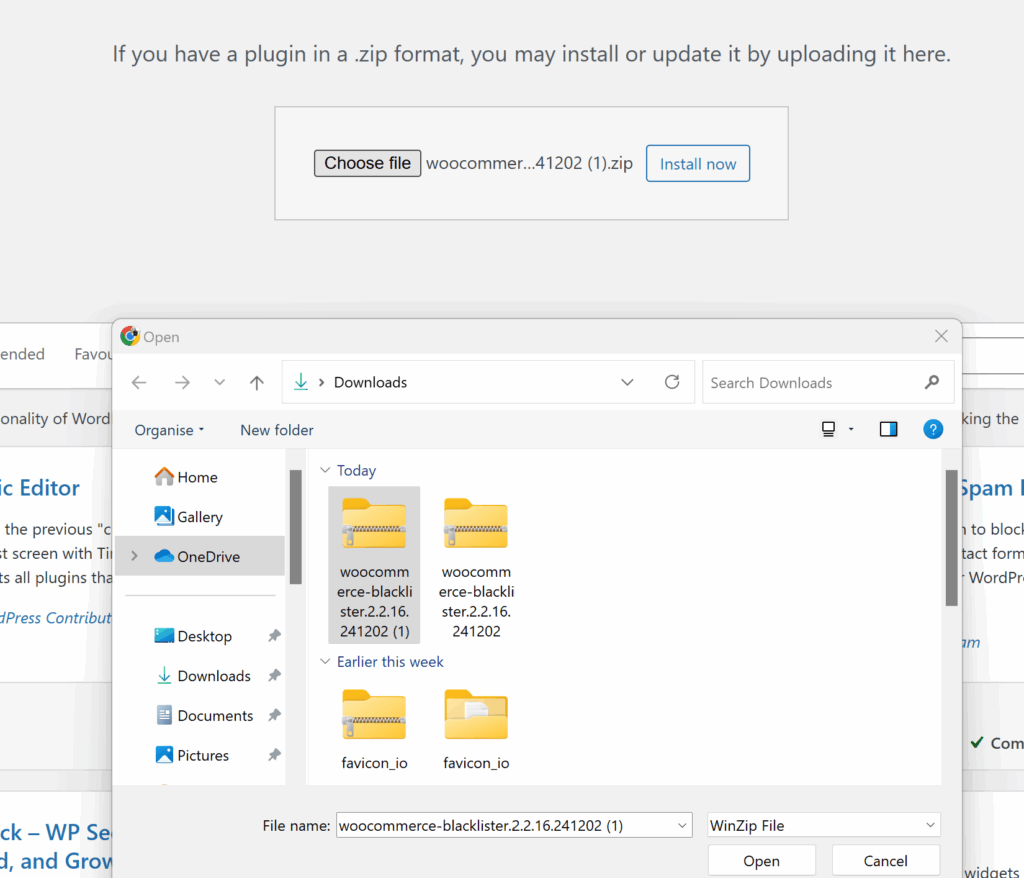
- Download and Install the Plugin: Go to the Blacklister for WooCommerce plugin and purchase the plugin. Once downloaded, you can upload the plugin through your WordPress admin panel by navigating to Plugins > Add New and then selecting Upload Plugin.
- Activate the Plugin: After installation, activate the plugin to start configuring the blacklisting rules.
Step 2: Configure Blacklisting Rules
Once activated, the plugin adds a new menu in the WooCommerce settings where you can specify the criteria to block users. The plugin allows you to block Users based on the following details:
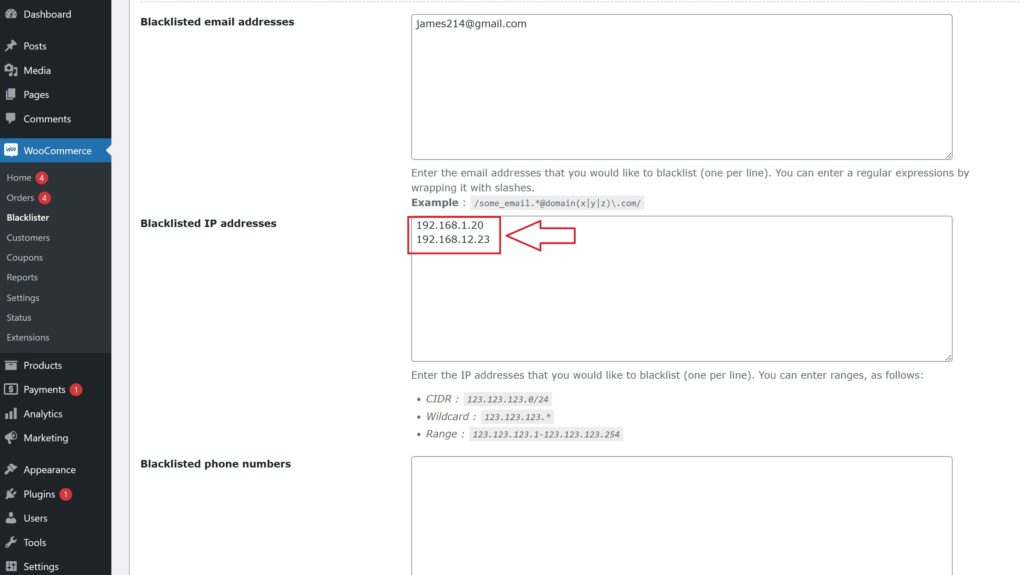
- Customer’s Name and Surname: Block User using their full name or just a part of it.
- Customer’s Address: Block based on the User street, postcode, city, province/state, or country.
- Customer’s Email Address: Block User using specific email addresses or partial matches.
- Customer’s Phone Number: Block based on the full or partial phone number.
- Customer’s IP Address: You can block specific IP addresses or even entire IP ranges.
You can also configure whether the matching should be an exact match or a partial match. The plugin supports regular expressions for all fields except IP addresses. For IP addresses, you can apply IP address masks or IP address ranges.
Step 3: How the Blacklisting Process Works
Once the rules are set, the plugin automatically compares the information provided by the User at checkout with the configured blacklisting rules. If there is a match, the plugin will block the order and stop the checkout process.
A customizable error message will then be displayed to the User, explaining why their order was blocked. This ensures that the User knows the reason for the denial, providing a professional and transparent experience.
Step 4: Customizing Messages
One of the plugin’s most valuable features is the ability to customize the error messages shown to blocked users. Whether you want to explain the reason behind the block or provide user support contact details, you can create a personalized message to keep the interaction courteous and professional.
Why Choose Aelia Blacklister for WooCommerce?
If you’re looking for a powerful way to manage and block unwanted or fraudulent users in your WooCommerce store, the Aelia Blacklister for WooCommerce plugin offers an efficient and flexible solution. Here’s why it stands out:
- Advanced Matching Criteria: Block users using multiple identifiers including full or partial matches of name, email, address, phone number, and IP address.
- Regular Expression Support: The plugin supports regular expressions (regex) for name, email, phone, and address fields, making it easy to match patterns rather than exact details.
- User-Friendly Configuration: Designed with simplicity in mind, this plugin is easy to install and set up, even for store owners with a minimal technical background.
- Custom Error Messaging: Maintain a professional image by tailoring the error messages shown to blocked users. Whether you want to explain the reason or offer a contact method, the choice is yours.
- IP Masking and Range Blocking: Take your security a step further by blocking specific IP addresses or entire IP ranges using advanced filtering options.
- Hands-Free Protection: Once configured, the plugin works silently in the background, automatically preventing blacklisted users from completing checkout.
To further enhance your store’s customer experience and compliance with regional tax rules, consider pairing it with the Aelia Tax Display by Country for WooCommerce. This plugin dynamically displays prices based on the customer’s location, improving clarity and transparency at checkout.
