
In today’s highly competitive e-commerce environment, ensuring the security of your WooCommerce store is more important than ever. WooCommerce fraud, including fraudulent transactions and malicious activities, can severely affect your business, leading to significant financial losses and reputational damage.
The Aelia Blacklister For WooCommerce strengthens your store’s security by allowing you to block unwanted visitors based on customizable criteria such as IP addresses and email domains. This proactive approach minimizes fraud risks while ensuring a smooth shopping experience for legitimate customers.
Additionally, the plugin integrates effortlessly with WooCommerce, ensuring that security measures don’t interfere with your operations. With detailed logging and reporting, you have complete control over order management and traffic filtering, ensuring optimal store performance. For further guidance on blocking spam email addresses, check out this useful WooCommerce tips guide.
Understanding the Blacklister Features
The Blacklister features are integral to safeguarding our WooCommerce store from fraudulent activities. By incorporating these features, we can effectively manage access and maintain a secure shopping environment for our genuine customers.
Types of Blacklists with Blacklister
We utilize various types of blacklists with the Blacklister plugin to bolster our store’s security:
- IP Address Blacklists: Block access from specific IP addresses or address ranges, preventing threats from known malicious sources.
- Email Address Blacklists: Stop registrations and orders from suspicious or disposable email addresses, minimizing the chances of fraud.
- Phone Number Blacklists: Restrict orders from problematic or suspicious phone numbers, reducing the likelihood of fraudulent transactions.
- Domain Blacklists: Block entire email domains linked to spam or fraudulent activities, adding an extra layer of security.
- Location-Based Blacklists: Limit access from geographic regions with high rates of fraud, enhancing protection for your store.
Each of these blacklist types supports exact or partial matches, providing flexibility in securing your store against various threats. The Blacklister plugin makes it easy to manage and implement these blacklists, ensuring seamless security without compromising customer experience.
Additionally, if you’re looking to enhance your WooCommerce store further, consider integrating the Aelia Currency Switcher for WooCommerce. This tool offers a seamless multi-currency experience, allowing you to cater to international customers while maintaining strong security across regions.
Setting Up Blacklists in WooCommerce with Aelia Blacklister for WooCommerce
The Aelia Blacklister for WooCommerce plugin allows you to easily manage and block specific customers based on various criteria, such as IP addresses, email addresses, phone numbers, and shipping addresses. By setting up Blacklists, you can improve your WooCommerce store’s security and prevent fraudulent or unwanted transactions.
Here’s a step-by-step guide to setting up Blacklists using the Aelia Blacklister for WooCommerce plugin:
Step 1: Install and Activate the Plugin
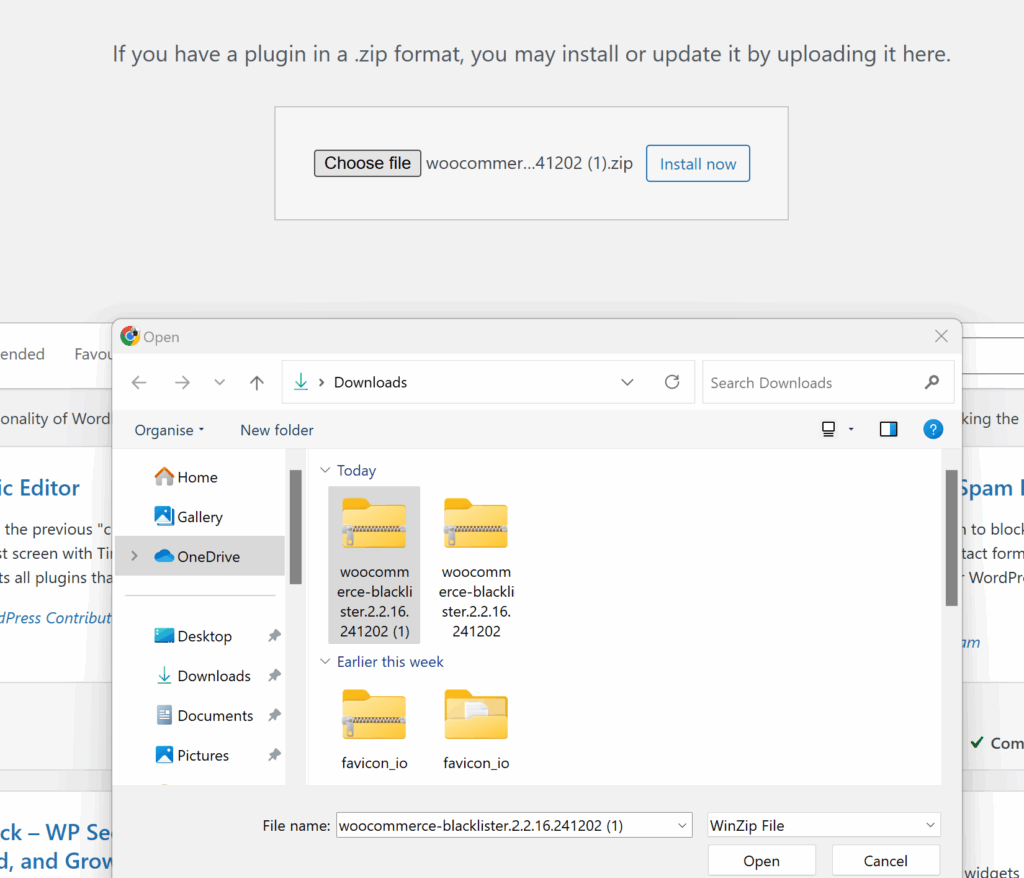
- Download the Plugin: First, purchase and download the plugin from Aelia Blacklister for WooCommerce.
- Upload the Plugin: In your WordPress admin panel, go to Plugins > Add New > Upload Plugin. Select the downloaded .zip file and click Install Now.
- Activate the Plugin: After installation, click Activate to enable the plugin on your store.
Step 2: Access the Aelia Blacklister Settings
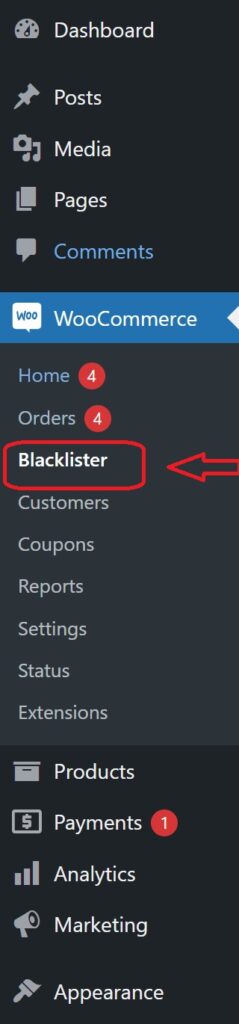
- Once the plugin is activated, navigate to WooCommerce > Settings in your WordPress dashboard.
- You will see a new tab titled Aelia Blacklister. Click on it to access the plugin’s settings.
Step 3: Define Blacklist Rules
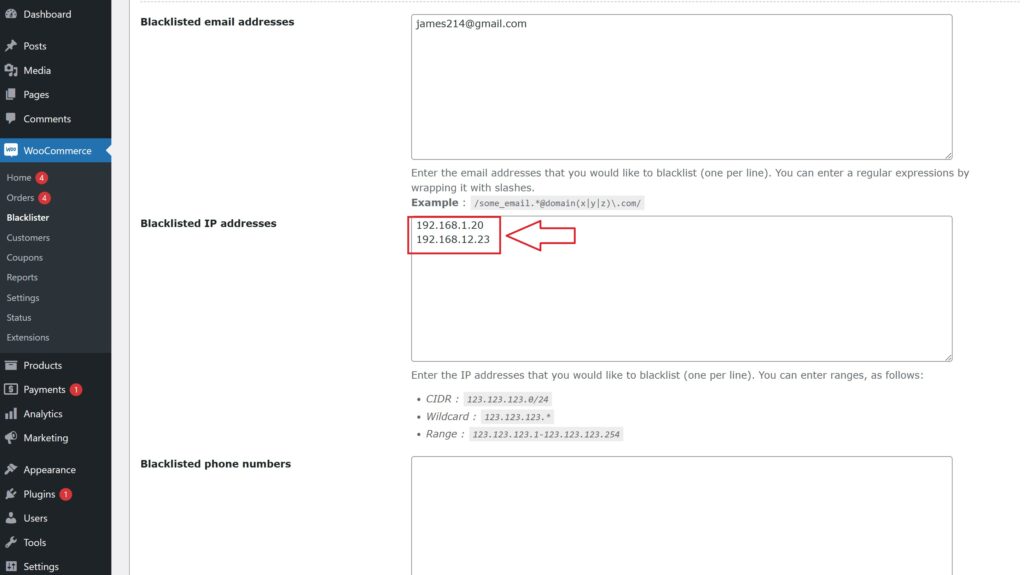
- Add Blacklist Entries: In the Aelia Blacklister settings, you’ll find options to add rules for blocking customers based on various fields:
- Customer’s Name and Surname: Using regular expressions, you can block customers based on their full name or partial matches.
- Customer’s Address: Block customers from specific cities, states, or countries by setting the corresponding address field.
- Customer’s Email Address: Block specific email addresses or domains to prevent unwanted customers from completing the checkout process.
- Customer’s Phone Number: Block phone numbers from specific regions or individual numbers associated with suspicious behavior.
- Customer’s IP Address: Block specific IP addresses, or use IP address masks to block ranges of IPs.
- You can configure these Blacklist criteria using exact matches or partial matches (with regular expressions for all fields except IP addresses).
- Set Match Criteria: Decide whether you want to block customers based on exact matches or partial matches:
- Exact Match: The customer’s information must exactly match the Blacklisted data.
- Partial Match: Use regular expressions to match parts of a customer’s information, such as a domain name in an email address.
Step 4: Configure Error Messages
- Custom Error Messages: Customise the error message that will be shown to customers when they attempt to place an order using Blacklisted details. This ensures clear communication with blocked users about why their order could not be completed.
Step 5: Save Settings
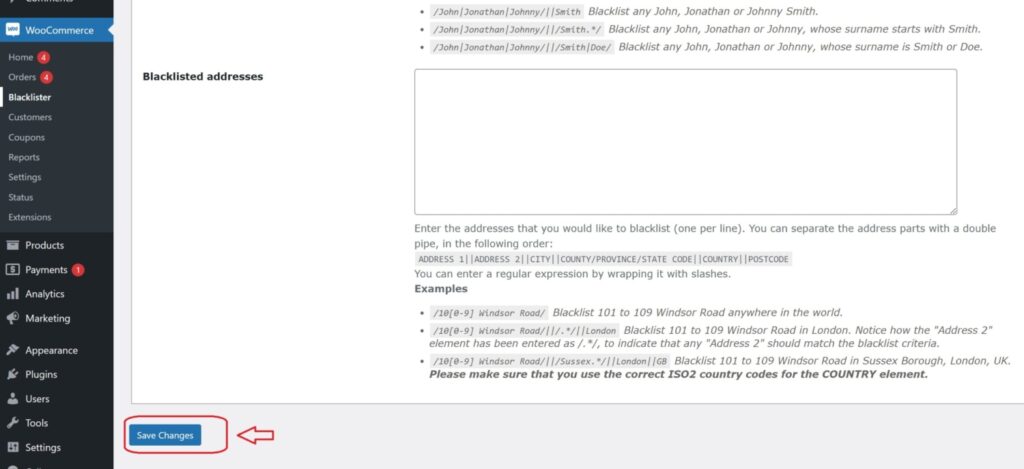
- After defining your Blacklist rules and customising error messages, click Save Changes to apply the settings.
Step 6: Test Blacklist Functionality
- To verify that the Blacklist is working properly, try to complete an order using details that match the blocked information (such as an email address, phone number, or IP).
- If configured correctly, the customer should be blocked from completing the checkout, and the custom error message will be displayed.
By configuring Blacklists with Aelia Blacklister for WooCommerce, you can effortlessly block undesirable customers and prevent fraudulent transactions on your store. This boosts security while ensuring a smoother and more reliable shopping experience for legitimate buyers. To further enhance your store’s functionality, you can also integrate the Aelia Tax Display by Country for WooCommerce, which customizes tax displays based on the customer’s location.
