Keeping your WooCommerce store secure from fraud is no longer optional,it’s essential. WooCommerce Fraud Prevention helps block malicious users who exploit stolen credit cards, abuse promo codes, initiate chargebacks, or place fake orders, protecting your revenue and store reputation.
To stay ahead of these threats, it’s important to use smart tools that detect and restrict suspicious activity based on factors such as IP addresses, email patterns, billing details, and geographic risk indicators.
When paired with features like a Currency Converter for WooCommerce, which ensures transparent and localized pricing, you can maintain a secure and smooth shopping experience for legitimate customers while filtering out high-risk traffic.
By proactively blacklisting fraudulent users and blocking suspicious behaviors, you’re not only protecting your revenue, you’re also safeguarding your brand and reinforcing customer trust. For more practical strategies, explore this guide on protecting your WooCommerce store from fraud and fake orders.
How to Spot and Block Fraudulent Users in WooCommerce
Blocking suspicious users starts with recognizing red flags. Here are the key behaviors that may indicate fraud in your WooCommerce store:
Payment Method Red Flags
- Unusually high order values that don’t reflect normal shopping patterns.
- Mismatched billing and shipping addresses or cardholder names.
- Repeated failed payment attempts,possibly from testing stolen cards.
Frequent Order Changes
Changes made repeatedly after an order is placed could indicate someone attempting to manipulate your store’s shipping or billing systems.
Geographic & IP Anomalies
- Orders from regions where you don’t typically do business.
- Multiple orders from the same IP within minutes,common in bot or proxy attacks.
High-Risk Country Activity
If your store supports international orders, monitor activity from countries known for high fraud rates. Consider setting rules to flag or block certain regions based on risk.
Incomplete or Suspicious User Profiles
Fraudsters often create accounts quickly using random or inconsistent data. Watch for incomplete names, generic emails, or obvious fake details. To better manage customer segmentation and account control, consider using tools like B2BKing – The Ultimate WooCommerce B2B & Wholesale Plugin.
Strengthen Your Store: Use IP Blocking and Blacklisting
To tighten your defenses, implement IP-based blocking within WooCommerce. This not only helps deter automated attacks but also filters out traffic from known risky sources. It’s a key part of a broader fraud prevention strategy. For added functionality, you can also explore features like WooCommerce Ultimate Gift Card plugins to manage secure, customized gift card transactions.
Implementing a Blacklisting System in WooCommerce
For a comprehensive approach, consider using a plugin like Aelia Blacklister for WooCommerce. This tool enables you to create custom rules that block fraudulent activity before it reaches checkout.
Aelia Blacklister for WooCommerce Features:
- Block users by:
- Full Name (first and last)
- Street, City, Postal Code, Country
- Email Address
- Phone Number
- IP Address
- Full Name (first and last)
- Tailor rules to specific behaviors or patterns commonly associated with fraud.
- Prevent access without disrupting the legitimate customer experience.
How to Configure Aelia Blacklister
Setup is straightforward,even for store owners with minimal technical knowledge:
Step 1: Download and Install the Aelia Blacklister Plugin
Part 1: Download the Plugin
- Visit the Official Aelia Website:
Head over to Aelia’s official site to obtain the most recent and authentic version of the plugin. - Purchase or Access the Plugin:
If the plugin requires payment, complete your purchase first. After payment, you will be able to download the plugin as a ZIP file. - Download the ZIP Archive:
Click the download button to save the compressed ZIP file containing all necessary plugin files to your computer.
Note: The ZIP file includes everything needed to install the plugin on your WordPress site.
Part 2: Upload the Plugin to Your WordPress Site
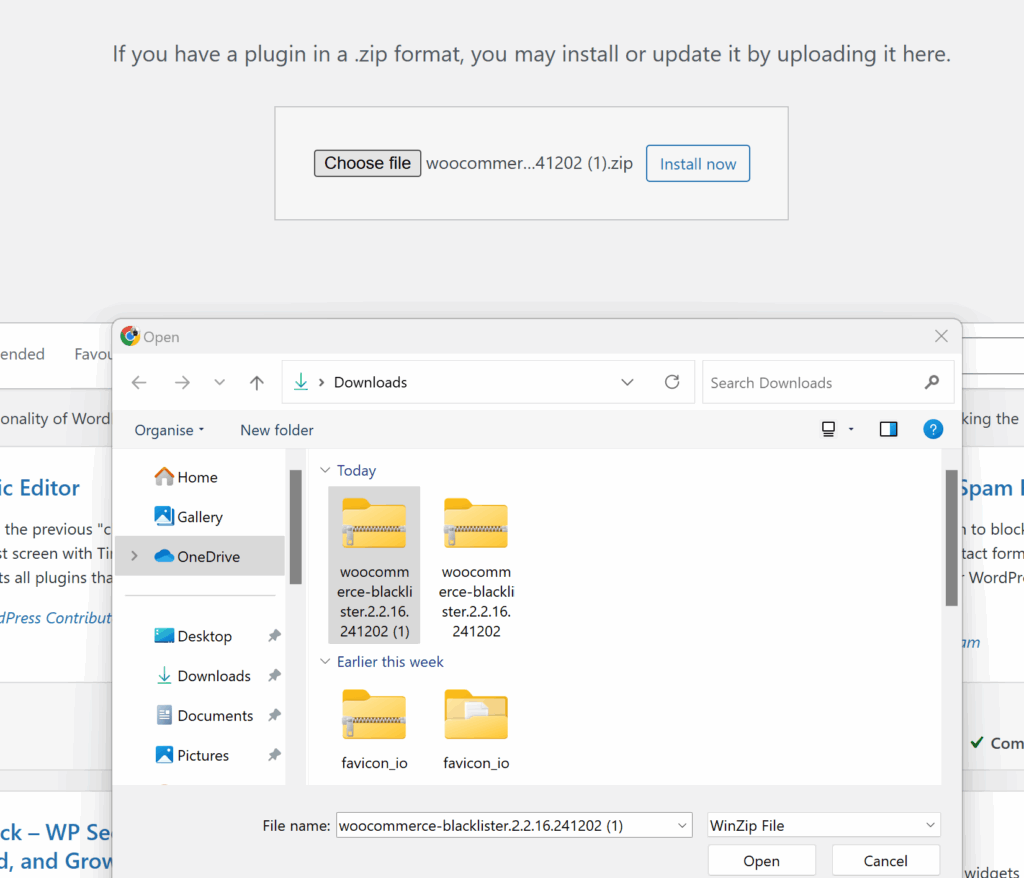
- Log in to WordPress Admin:
Access your WordPress admin dashboard by logging in with your credentials. - Go to Plugins > Add New:
From the left-hand menu, hover over Plugins and select Add New to open the plugin installation page.
- Click ‘Upload Plugin’:
At the top of the page, find and click the Upload Plugin button to start uploading manually. - Select the ZIP File:
Click Choose File, locate the Aelia Blacklister ZIP file you downloaded, and select it.
- Install the Plugin:
After selecting the file, click Install Now. WordPress will upload and unpack the plugin for installation.
Part 3: Activate the Plugin
- Wait for Installation to Finish:
The installation process will take a few seconds. Once done, a confirmation message will appear. - Activate the Plugin:
Click Activate Plugin to enable Aelia Blacklister on your WooCommerce store. - Verify Activation:
After activation, you’ll be redirected to the Plugins page where Aelia Blacklister should be listed as active. You’ll also find a new menu or settings option for Aelia Blacklister within the WooCommerce settings, confirming the plugin is ready to use.
Step 2: Configure Blocking Rules in Aelia Blacklister
After installing and activating the Aelia Blacklister plugin, the next step is to set up the blocking rules to protect your store from fraudulent activity.
1. Block by Name and Surname
How to Block:
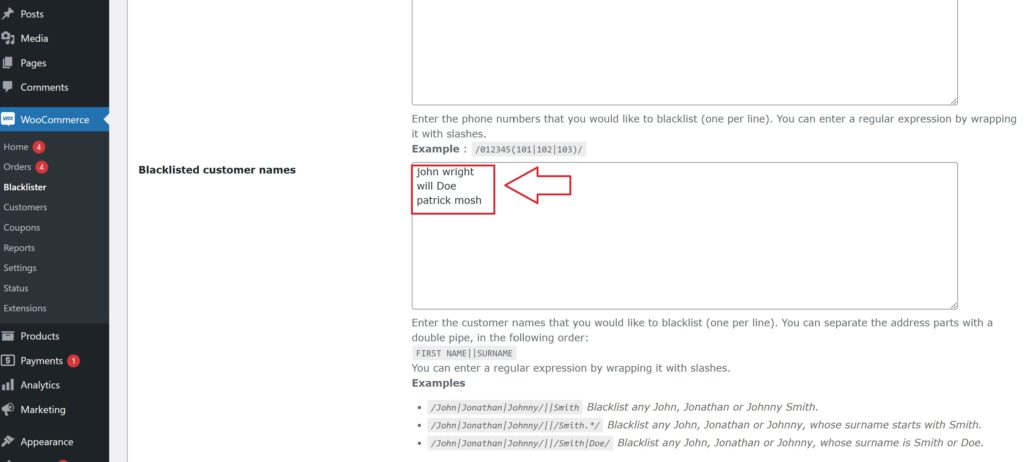
Navigate to the blacklist settings and enter the full names or surnames of individuals you want to block. You can target first names, last names, or a combination of both.
Why It Matters:
Fraudsters may change their contact information, like email or Ip, but often reuse the same names. Blocking by name prevents them from bypassing your security even when other details change.
Steps:
- Open the Blacklist Customer section in the plugin settings.
- Add the names you want to block.
- Save or update the settings.
2. Block by Address (Street, Postcode, City, Province/State, Country)
How to Block:
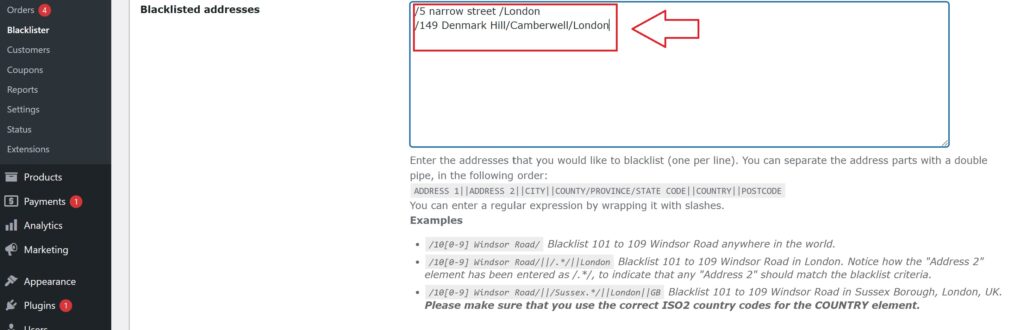
You can block specific address components such as street, postal code, city, state/province, or country. This helps identify and block fraudulent users who reuse fake or stolen addresses.
Why It Matters:
Fraudsters frequently use bogus or stolen addresses from high-risk regions. Blocking these locations helps prevent fraudulent purchases.
Steps:
- Enter the full or partial address details in the Address section.
- Specify the level of detail to block (e.g., street, postcode, region).
- Save your changes.
3. Block by Email Address
How to Block:

Enter specific email addresses or entire domains to block. For example, blocking all addresses from disposable email providers by using domain wildcards (e.g., *@tempmail.com).
Why It Matters:
Many fraudsters use temporary or disposable email accounts to create fake user profiles. Blocking these emails stops them from abusing your store.
Steps:
- In the Email Address field, add the exact emails or domains you want to block.
- Save the settings to apply the restrictions.
4. Block by Phone Number
How to Block:

Input individual phone numbers or entire area codes to block fraudulent contact numbers.
Why It Matters:
Fraudsters often use fake or stolen phone numbers to place orders. Blocking suspicious numbers adds another protective layer.
Steps:
- Go to the Phone Number section.
- Add phone numbers or area codes you want to restrict.
- Save the updates.
5. Block by IP Address
How to Block:
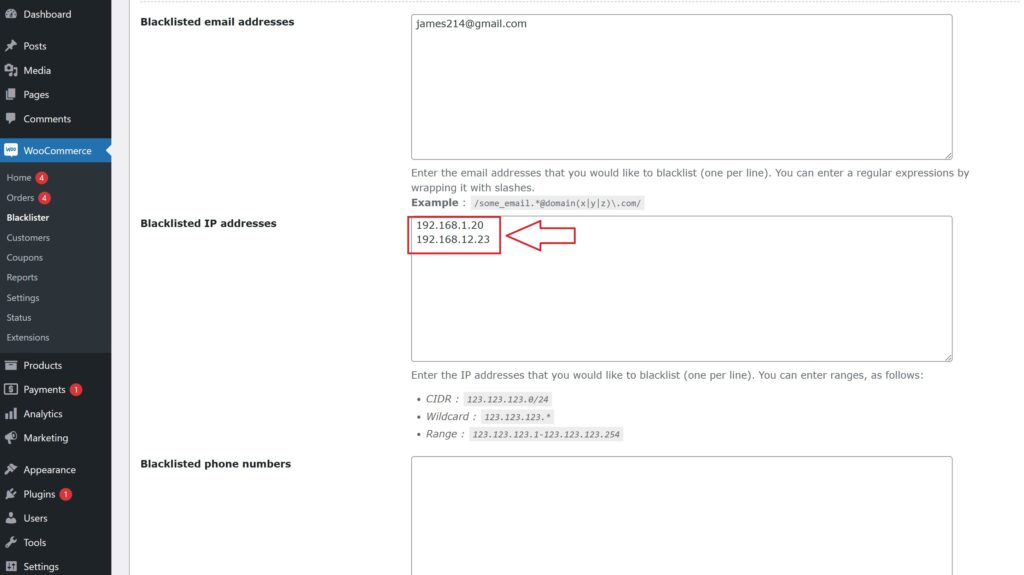
Block single IP addresses or whole IP ranges using wildcards or regular expressions to cover patterns of abusive behavior.
Why It Matters:
Blocking IP addresses stops fraudsters from accessing your store repeatedly from the same networks, limiting repeat offenses.
Steps:
- Access the IP Address settings.
- Enter specific IPs or use wildcards to block entire ranges.
- For advanced rules, apply regex patterns.
- Save the configuration.
Final Step: Save and Activate Your Rules
Once you have entered all the blocking criteria, make sure to Save or Update your settings to activate the blacklist rules. Regularly review and update your blacklist to stay ahead of new fraud attempts and keep your WooCommerce store secure.
Once configured, the plugin automatically filters out users who match your defined criteria, helping you stay one step ahead of fraudsters.
Enhance Your WooCommerce Store Security with Additional Aelia Tools
While Aelia Blacklister offers robust blocking capabilities to protect your WooCommerce store from fraudulent orders, you can further strengthen your site’s security and functionality by integrating other complementary Aelia plugins.
A key tool to consider is the Prices by Country for WooCommerce plugin. This plugin enables you to display customized pricing based on the visitor’s location, simplifying international sales management and helping prevent misuse related to currency or regional pricing differences.
Explore more and view pricing options here: Aelia Prices by Country for WooCommerce
By combining Aelia Blacklister with Prices by Country, you can deliver a safer, more personalized shopping experience that caters to your global customer base while keeping fraudsters at bay.
