
In a world where online fraud is growing more advanced, keeping your WooCommerce store secure is no longer optional,it’s essential. From fake orders to suspicious activity, every online store owner faces the challenge of filtering out malicious visitors without disrupting the shopping experience for genuine customers.
That’s where the Aelia Blacklister for WooCommerce comes in. This powerful tool allows you to block specific users based on IP addresses, email domains, and other custom rules. It helps you stop fraud in WooCommerce by automatically filtering out unwanted traffic before it can cause damage,saving you from chargebacks, fake orders, and repeat offenders.
Why Fraud Prevention Matters
Online fraud doesn’t just hit your wallet,it can damage your reputation and erode customer trust. Implementing smart fraud prevention strategies helps keep your business running smoothly and your customers happy.
Key Benefits of Stopping Fraud in WooCommerce
- Protect Your Revenue: Reduce chargebacks and lost sales by blocking high-risk users.
- Build Customer Confidence: A secure store earns trust and encourages repeat purchases.
- Save Time with Automation: Let plugins handle detection and blocking so you can focus on growth.
- Keep Scammers Out: Ban recurring offenders using blacklists for IPs, emails, and more.
Common WooCommerce Fraud Risks
| Type | What It Means |
|---|---|
| Payment Fraud | Unauthorized transactions or stolen credit card use |
| Account Takeovers | Hackers accessing real customer accounts |
| Phishing Attacks | Fake emails or messages stealing login or payment information |
| Friendly Fraud | Legit customers filing false disputes to reverse payments |
Common Types of Fraud in WooCommerce
Running a WooCommerce store opens up opportunities for growth,but it also exposes your business to various forms of fraud. Understanding these threats is the first step in protecting your online store.
1. Payment Fraud (Credit Card Fraud)
What it is:
A scammer uses stolen credit card details to place orders on your store.
Example:
A fraudulent customer places an order using someone else’s credit card. A chargeback is filed once the real cardholder notices, and you lose the product and the money.
Why it’s dangerous:
- Increases chargeback rates
- Costs you in lost product and fees
- Can lead to payment processor restrictions
2. Account Takeover (ATO)
What it is:
Hackers gain access to a legitimate customer’s account and place unauthorized orders or access personal data.
Example:
A cybercriminal uses stolen login credentials to access a customer account, updates the shipping address, and orders items using stored payment methods.
Why it’s dangerous:
- Breaches customer trust
- Leads to refund and chargeback disputes
- May expose private data, risking GDPR violations
3. Friendly Fraud (Chargeback Fraud)
What it is:
A legitimate customer falsely claims they didn’t receive a product or didn’t authorize a purchase, requesting a chargeback.
Example:
A customer receives the product, then contacts their credit card company to reverse the charge, leaving you without the item or payment.
Why it’s dangerous:
- Often hard to prove and win disputes
- Affects merchant credibility with payment providers
4. Phishing & Social Engineering Attacks
What it is:
Scammers attempt to gain sensitive information (logins, payment data) by tricking users through fake emails or websites.
Example:
A customer receives a fake email pretending to be from your store, asking them to “update” their payment info via a malicious link.
Why it’s dangerous:
- Can result in stolen data or accounts
- Damages your brand reputation if customers associate it with scams
5. Fake or Duplicate Accounts
What it is:
Fraudsters create multiple fake accounts to exploit discounts, referral bonuses, or sign-up offers.
Example:
A single user registers 20 fake email addresses to abuse a “10% off first order” promotion.
Why it’s dangerous:
- Skews analytics and customer data
- Wastes marketing budget and resources
- Can be part of larger fraudulent schemes
Learn how to block spam email addresses in WooCommerce to stop abuse before it starts
6. Return Abuse & Wardrobing
What it is:
Customers purchase items to use them temporarily, then return them, claiming they’re unused.
Example:
A customer buys a shirt, wears it once for a photo shoot, and then returns it for a full refund.
Why it’s dangerous:
- Results in product damage and resale loss
- Increases return processing costs
Implementing Aelia Blacklister in WooCommerce
We implement the Aelia Blacklister to secure our WooCommerce store against fraudulent activities. This process involves installing the plugin and configuring specific settings to block malicious users effectively.
Installation and Setup
Step 1: Open the WordPress Admin Panel
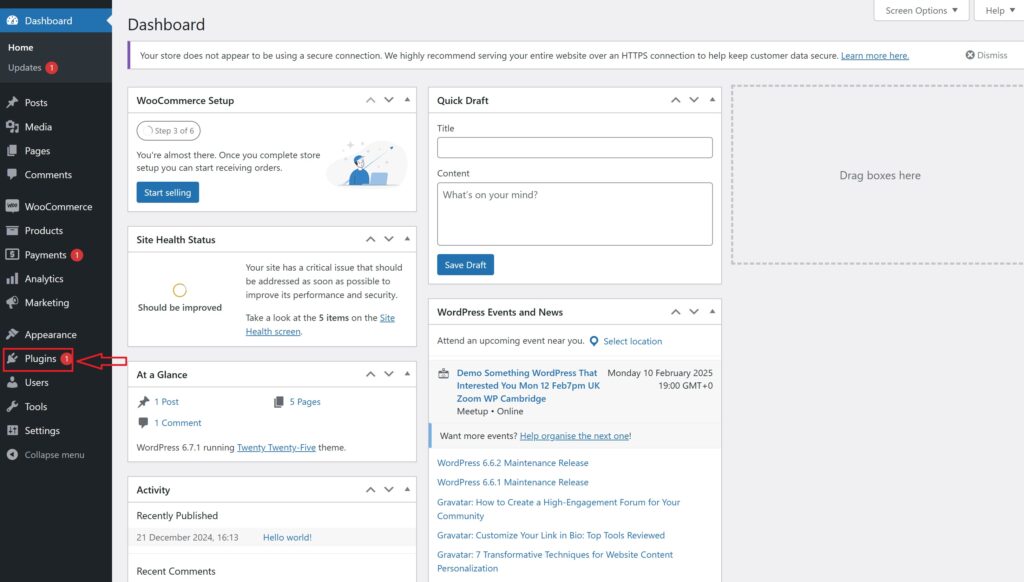
- Open your web browser and go to your WordPress login page (typically found at your website.com/wp-admin).
- Enter your Username and Password and click the login button.
- Once logged in, you’ll see the WordPress dashboard.
- Look at the menu on the left-hand side. Locate and click on the Plugins section. This will take you to a page showing all the plugins currently installed on your website.
Step 2: Add New Plugin

- On the Plugins page, look at the top left corner of the screen. You’ll see a button labeled Add New. Click on it.
- This will take you to the “Add Plugins” page, where you can search for new plugins or upload one.
- At the top of the “Add Plugins” page, find and click on the Upload Plugin button. This option allows you to upload and install a plugin file from your computer.
Step 3: Upload the Plugin ZIP File

- After clicking Upload Plugin, a new section will appear with a button labeled Choose File. Click this button.
- A file explorer window will open, allowing you to browse your computer.
- Navigate to the folder where you’ve saved the Aelia Blacklister ZIP file (downloaded from the Aelia website).
- Select the ZIP file and click Open (or the equivalent button for your system).
- Back in WordPress, confirm that the correct file is selected and click Install Now. WordPress will upload and install the plugin.
Step 4: Activate the Plugin
- After the installation, WordPress will display a success message and provide you with the option to Activate Plugin.
- Click the Activate Plugin button. This enables the Aelia Blacklister on your WooCommerce store, making it ready for configuration.
Step 5: Access Plugin Settings
- Once the plugin is activated, you’ll need to configure it.
- Look for a new menu item in your WordPress dashboard, either under the Settings menu or as a dedicated Aelia Blacklister tab (it may also be under WooCommerce > Settings).
- Click on this tab to open the Aelia Blacklister settings page.
- Here, you can configure the plugin’s options, such as blacklisting criteria (e.g., names, addresses, email addresses, phone numbers, and IPs), and customize the settings to suit your store’s needs.
Methods to Prevent Fraudulent Activity in WooCommerce
Blocking by Email Address

Using the Aelia Blacklister plugin, you can block fraudulent customers by manually entering their email addresses into the blacklist. Here’s how to do it:
- Access the Blacklister Settings
- From the WordPress Dashboard, go to WooCommerce > Blacklister.
- Click on the Blacklisting Rules tab.
- Add Email Addresses to the Blacklist
- In the Blacklisted email addresses field, manually type each email address you want to block, one per line.
- Save Changes
- After entering the email addresses, scroll to the bottom of the page and click Save Changes to update the blacklist.
- Verify the Block
- Attempting to register or checkout using a blacklisted email will trigger a custom error message notifying the user that their email is not allowed.
Blocking by IP Address
The Aelia Blacklister plugin allows you to manually block IP addresses to prevent fraudulent activity. Here’s how to set it up:
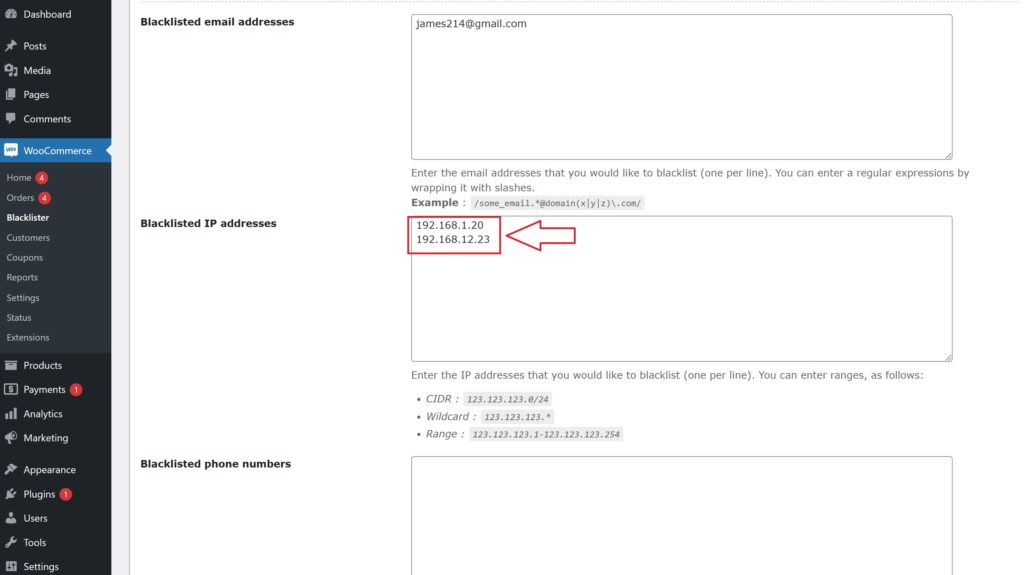
- Access the Blacklister Settings
- Go to WooCommerce > Blacklister from your WordPress Dashboard.
- Click on the Blacklisting Rules tab.
- Manually Add IP Addresses
- Locate the Blacklisted IP addresses field.
- Manually type in the IP addresses you want to block, one per line.
- If you want to block a range of IPs, use CIDR notation (e.g., 192.168.0.0/24 to block all addresses from 192.168.0.1 to 192.168.0.255).
- Save Changes
- After entering the IPs, scroll to the bottom of the page and click Save Changes to update the blacklist.
- Test the Block
- Any user attempting to access your site or checkout from a blacklisted IP will be prevented from completing their actions.
Blocking by Location
The Aelia Blacklister plugin allows blocking of specific countries or regions based on geolocation to prevent fraudulent activity.
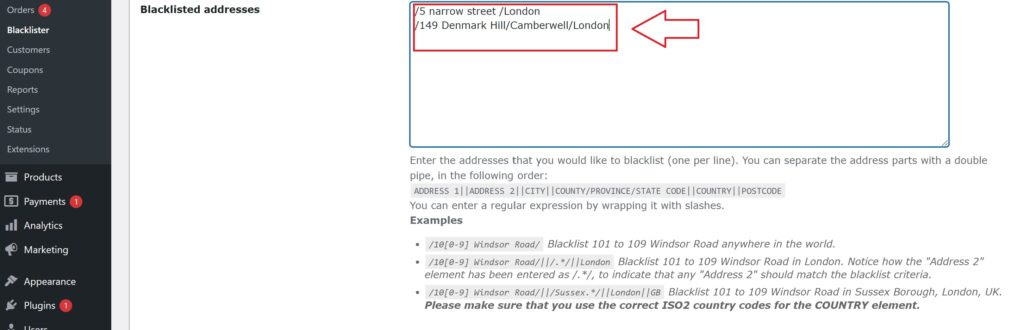
- Access the Blacklister Settings
- Navigate to WooCommerce > Blacklister in your WordPress Dashboard.
- Open the Blacklisting Rules tab.
- Manually Block Locations
- Add countries to the Blacklisted locations field using their two-letter ISO codes (e.g., US for the United States, NG for Nigeria).
- Multiple country codes should be entered on separate lines.
- Save Changes
- Click Save Changes at the bottom of the page to apply your updated settings.
- Effect of Blocking
- Customers from the listed locations will be unable to proceed with checkout.
Blocking by Phone Number
To block fraudulent phone numbers, follow these steps:

- Access the Blacklister Settings
- From your WordPress Dashboard, go to WooCommerce > Blacklister.
- Click on the Blacklisting Rules tab.
- Add Phone Numbers Manually
- Find the Blacklisted phone numbers section.
- Manually enter phone numbers you wish to block, one per line.
- If your store operates internationally, include country codes for accuracy.
- Save Changes
- Click Save Changes to update the blacklist.
- Results of Blocking
- Blacklisted phone numbers will be restricted from registering or completing purchases, with a notification displayed to users.
Blocking by Name
The Aelia Blacklister plugin allows you to block specific names manually, adding another layer of fraud prevention. This feature is particularly useful for stopping repeated fraudulent attempts by known offenders.
How to Block Names using Aelia

- Access the Blacklister Settings
- Go to WooCommerce > Blacklister in your WordPress Dashboard.
- Navigate to the Blacklisting Rules tab.
- Add Names to the Blacklist
- Locate the Blacklisted names field.
- Manually enter the full names you want to block, one per line.
- Save Changes
- Once you’ve entered the names, scroll to the bottom of the page and click Save Changes to update your blacklist.
- Effect of Blocking
- Any user attempting to register or complete a transaction using a blacklisted name will be prevented from proceeding. A custom error message can be configured to notify the user of the restriction.
Using Aelia Blacklister Plugin gives you the power to proactively block orders from unwanted users, offering greater control over your transactions and boosting store security. To complement this, consider adding the Currency Switcher for WooCommerce, which enables real-time currency conversions,ideal for international customers looking for a seamless checkout experience.
For accurate tax handling, the Tax Display by Country plugin ensures that customers see region-specific tax information, making your pricing more transparent and compliant. Together, these tools form a powerful suite that enhances both security and user experience.
Additionally, if you’re customizing regional settings, check out this step-by-step guide to renaming countries in WooCommerce, which helps tailor your store to match your brand tone or legal requirements. Visit Aelia For more Plugins.
