
In the fast-paced world of e-commerce, protecting our WooCommerce store from scammers is crucial. We understand the challenges of identifying and blocking fraudulent activities that can harm both our reputation and profits. With Aelia Blacklister, managing these risks becomes seamless and efficient.
Aelia Blacklister for WooCommerce empowers us to block unwanted visitors by blacklisting specific names, addresses, phone numbers, email addresses, and IPs using exact matches or regular expressions. This advanced filtering ensures that only legitimate customers can access our store. Additionally, the plugin’s intelligent risk assessment assigns a coefficient to each order, allowing us to automatically prevent high-risk transactions before they negatively affect our business.
By integrating Aelia Blacklister Plugin into our WooCommerce setup, we enhance store security while maintaining a trustworthy shopping environment. This powerful tool streamlines user management and adds an extra layer of protection against potential threats, ensuring a safe and reliable experience for our customers.
For accurate tax handling, the Tax Display by Country for WooCommerce plugin helps ensure precise tax calculations based on customer location, making tax compliance easier and more transparent. Additionally, for regional customizations, check out this step-by-step guide to renaming countries in WooCommerce to tailor your store’s settings to your needs.
How Scammers Target WooCommerce Stores
Scammers can target WooCommerce stores in several ways, and understanding these tactics is crucial for protecting your business. Here are some common methods they use to attack WooCommerce stores:
1. Fake Orders and Payment Fraud
Scammers may place fake orders using stolen credit card information or compromised payment methods. They intend to either chargeback the payment later or use fake details to avoid payment entirely. This can lead to financial losses and inventory depletion.
How it works:
- Fraudulent customers use stolen or fake credit card information to complete the transaction.
- Once the scammer receives the goods, they often file a chargeback or simply disappear.
Prevention:
- Use fraud prevention plugins and tools.
- Enable AVS (Address Verification System) and 3D Secure.
2. Account Takeover (ATO)
In this type of attack, hackers gain access to existing customer accounts by exploiting weak passwords, phishing, or brute-force attacks. Once they have access, they place fraudulent orders using the stored payment methods.
How it works:
- Scammers use stolen login credentials (often from other breaches) to access customer accounts.
- They update the delivery address and make unauthorized purchases.
Prevention:
- Enable Two-Factor Authentication (2FA) for customer logins.
- Encourage strong passwords and use CAPTCHAs.
3. Friendly Fraud (Chargeback Fraud)
This occurs when a legitimate customer intentionally disputes a valid transaction to get a refund while keeping the product. They may claim they didn’t receive the product or that the transaction wasn’t authorized, even when it was.
How it works:
- The customer makes a purchase and later files a chargeback, often claiming the product was not delivered.
- This results in the store losing both the product and the funds.
Prevention:
- Use tracked shipping with signature confirmation.
- Keep detailed records and documentation of transactions.
4. Phishing Attacks
Phishing scams involve sending fraudulent emails pretending to be from your store to trick customers into revealing sensitive information, like payment details or login credentials. This can also target store owners and employees.
How it works:
- Scammers send fake emails, often appearing legitimate, asking customers to “update” their payment information or “verify” their accounts via a malicious link.
Prevention:
- Educate your customers and staff about phishing.
- Use SSL certificates and other security protocols to ensure safe communication.
5. Spam and Fake Accounts
Fraudsters often create multiple fake accounts using disposable email addresses or bots to exploit your store’s offers, such as discounts for first-time customers. This skews your data and can drain your marketing budget.
How it works:
- Scammers create fake accounts to exploit promotional offers (e.g., “10% off for first-time buyers”).
- They might use temporary or fake email addresses, making it hard to track them.
Prevention:
- Use CAPTCHA on registration forms.
- Use plugins to block disposable email addresses.
Benefits of Blacklisting Scammers
Blacklisting scammers is one of the most effective ways to protect your WooCommerce store from fraudulent activity. By actively blocking malicious users based on specific criteria such as IP addresses, email addresses, and phone numbers, you significantly reduce the risk of unwanted transactions, protecting both your revenue and reputation. Here are some key benefits of blacklisting scammers:
- Prevent Fraudulent Orders
Blacklisting helps you filter out scam orders before they can even be processed, reducing the chances of financial losses and chargebacks. - Enhance Security
By blocking suspicious users, you can maintain a secure environment for genuine customers and deter repeat offenders from entering your store. - Protect Customer Trust
A secure and scam-free environment helps build trust with your customers, ensuring they have confidence when shopping with you. - Reduce Chargebacks
Scammers often engage in chargeback fraud, where they dispute legitimate transactions to get their money back. Blacklisting reduces the likelihood of chargebacks by stopping fraudulent purchases before they happen. - Streamline Store Operations
With blacklisting, you eliminate the need for time-consuming manual reviews of potentially fraudulent orders, freeing up your time to focus on growing your business.
To further improve your store’s security and efficiency, check out this guide on how to block spam email addresses in WooCommerce, which offers tips for keeping spam accounts and malicious visitors at bay.
How Aelia Blacklister for WooCommerce Helps Block Scammers
Aelia Blacklister is a robust security plugin designed to protect your WooCommerce store from scammers by allowing you to block customers based on a variety of criteria. Here’s how it helps effectively blacklist scammers:
- Blacklist Based on Specific User Information
Aelia Blacklister provides you with complete control over the data you want to block. You can target scammers by blacklisting:- Customer Names: Block specific or partial names using exact matches or regular expressions, allowing you to identify and block known scammers.
- Customer Addresses: Prevent fraudulent orders from suspicious locations by blocking users based on street address, postcode, city, state, or country.
- Email Addresses: Scammers often use disposable or flagged emails. Blacklist specific addresses or entire domains to stop fraudulent accounts.
- Phone Numbers: Block phone numbers associated with fraud by using exact matches or regex patterns to prevent scam attempts.
- IP Addresses: One of the most effective ways to prevent repeat fraud is by blocking specific IP addresses or IP ranges (using CIDR notation), stopping scammers from returning.
- Advanced Filtering with Regular Expressions
Aelia Blacklister provides advanced filtering options through regular expressions (regex), enabling you to target patterns within user data. This is particularly useful when scammers slightly modify their details. With regex, you can block:- Partial Matches: Block all email addresses from specific domains, like all emails from @fraudulentdomain.com.
- Pattern-based Matches: Block phone numbers or addresses that follow recurring patterns, making it easier to catch repeated fraud attempts.
- Automatic Blocking of Fraudulent Orders
Aelia Blacklister automates the blocking of fraudulent orders by comparing customer details against your blacklist. If there’s a match (name, address, phone number, email, or IP address), the plugin halts the checkout process, preventing the order from being completed. This automation saves you time by reducing manual order reviews, helping you avoid financial losses, chargebacks, and damage to your reputation. - Customizable Error Messages
When a user is blocked, Aelia Blacklister allows you to show a customized error message, explaining why their order was rejected. This ensures transparency and professionalism, helping you communicate with genuine customers while discouraging scammers. For example, if a fraudulent IP or email address is blocked, the error message can inform the customer that their order was canceled due to suspicious activity. - Risk Assessment and Preemptive Blocking
Beyond blacklisting, Aelia Blacklister includes a risk assessment feature that assigns a score to each order based on criteria like customer behavior, geographical location, and other factors. If a high-risk order is detected, the plugin can automatically block it before processing, stopping fraud before it even happens. This proactive approach ensures a safer, more secure shopping experience for legitimate customers.
To further optimize your WooCommerce store’s operations, check out this guide on setting up international shipping zones in WooCommerce, which can help streamline your store’s logistics and enhance the customer experience.
How to Install and Configure Aelia Blacklister for WooCommerce
Installing and configuring Aelia Blacklister for WooCommerce is a straightforward process. With this plugin, you can efficiently block fraudulent users based on their email addresses, phone numbers, IP addresses, and other criteria. Below are the steps to help you install and configure Aelia Blacklister for your WooCommerce store.
Installation Steps
Download and Install the Plugin
Before you can start using Aelia Blacklister, you’ll need to download the plugin From Aelia
Purchase and Download:
- Go to the Aelia Blacklister for WooCommerce product page and purchase the plugin.
- After purchasing, you will be given a ZIP file containing the plugin.
1. Login to Your WordPress Admin Dashboard
- Open your preferred web browser.
- Go to your WordPress login page (usually www.yoursite.com/wp-admin).
- Enter your username and password, then click login to access your WordPress dashboard.
2. Go to Plugins → Add New

- In the left-hand menu of the WordPress dashboard, hover over Plugins.
- In the dropdown that appears, click on Add New. This will take you to the Add Plugins page.
3. Click on “Upload Plugin” at the Top of the Page
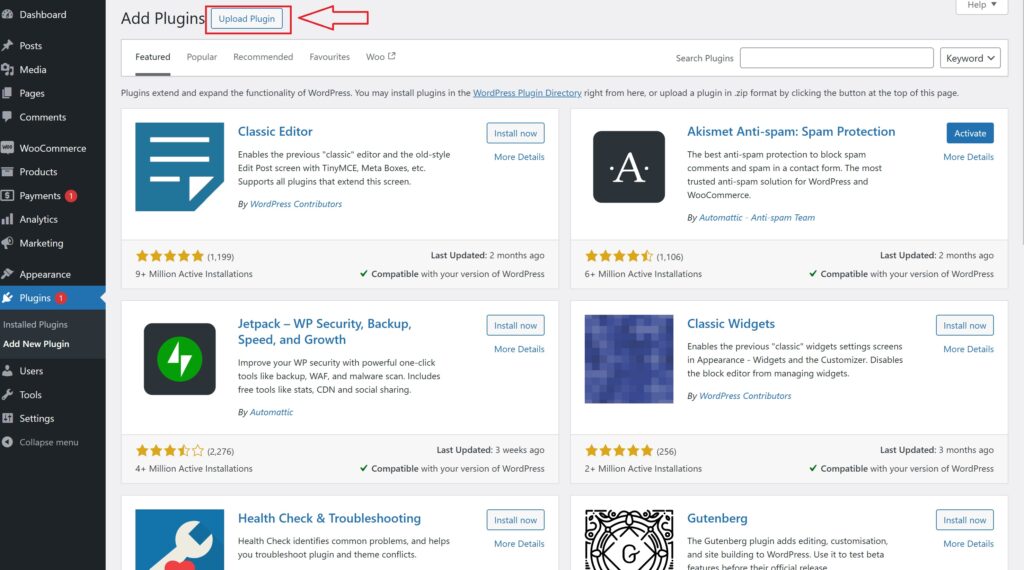
- On the Add Plugins page, at the top left, you will see several options including Upload Plugin.
- Click the Upload Plugin button. This allows you to upload a plugin from your computer instead of selecting one from the WordPress plugin repository.
4. Click on “Choose File” and Select the ZIP File You Downloaded
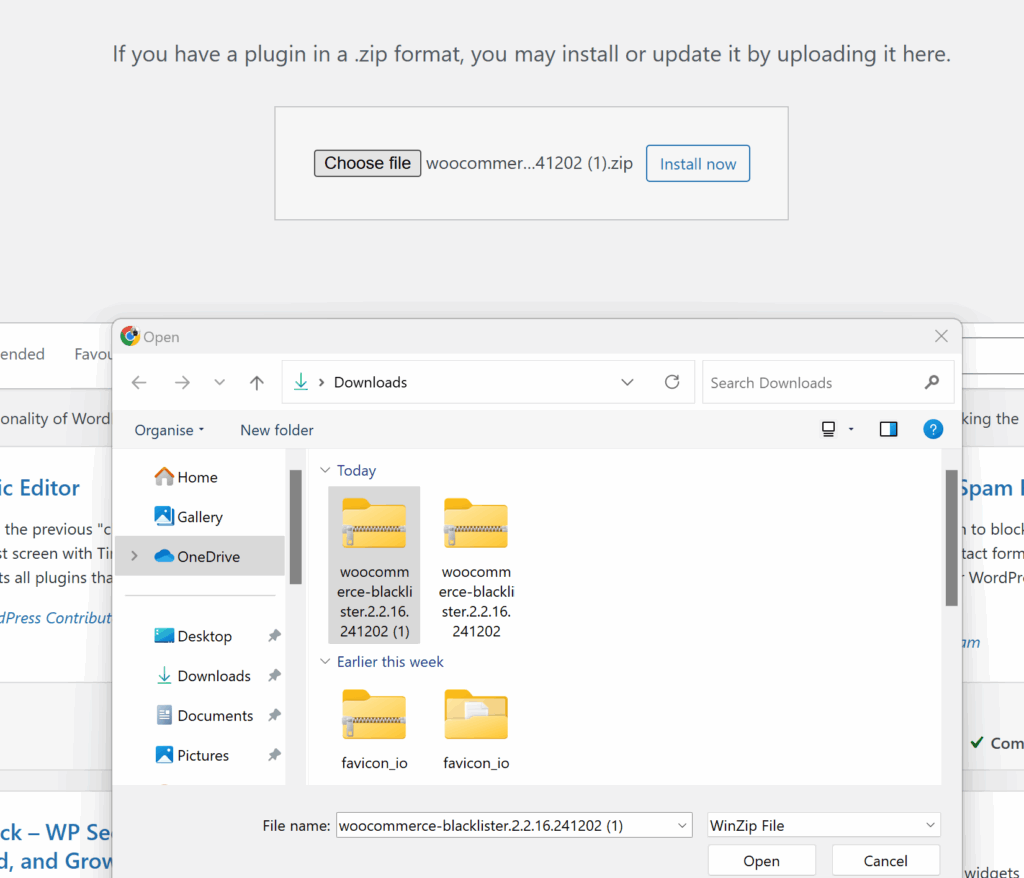
- After clicking Upload Plugin, a new screen will appear asking you to select the plugin you want to install.
- Click on the Choose File button. This will open a file explorer dialog on your computer.
- Find the ZIP file you downloaded for Aelia Blacklister on your computer, select it, and click Open.
5. Click “Install Now”
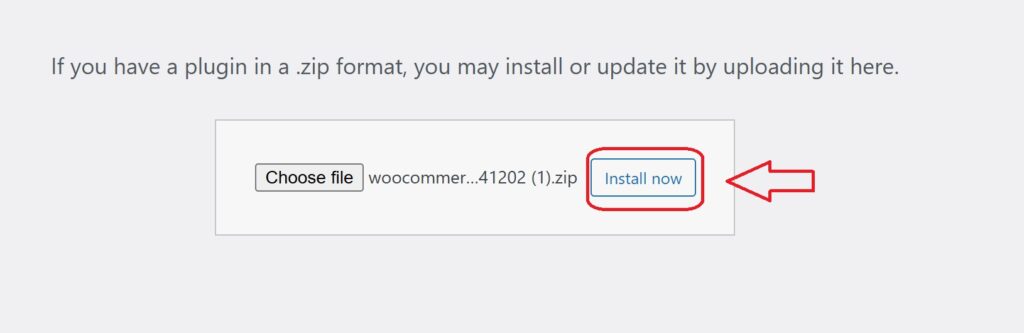
- After selecting the ZIP file, the plugin’s name will appear next to the Choose File button.
- Click the Install Now button to start the installation process. WordPress will begin installing the plugin from the ZIP file you selected.
6. Activate the Plugin
- Once the installation is complete, you’ll see a message confirming that the plugin was successfully installed.
- Now, click the Activate button to activate the plugin on your WordPress site.
Configuring Aelia Blacklister for WooCommerce
Once the plugin is installed and activated, follow the steps below to configure it.
1. Access the Aelia Blacklister Settings

- After activation, you will see a new menu item called Aelia Blacklister in your WordPress dashboard.
- Go to WooCommerce → Settings → Aelia Blacklister.
This will open the plugin settings where you can configure your blacklisting rules.
2. Set Up Blacklist Criteria
The Aelia Blacklister plugin allows you to block customers based on various criteria, including names, addresses, emails, phone numbers, and IP addresses. Here’s how to configure each:
Blacklist Names:
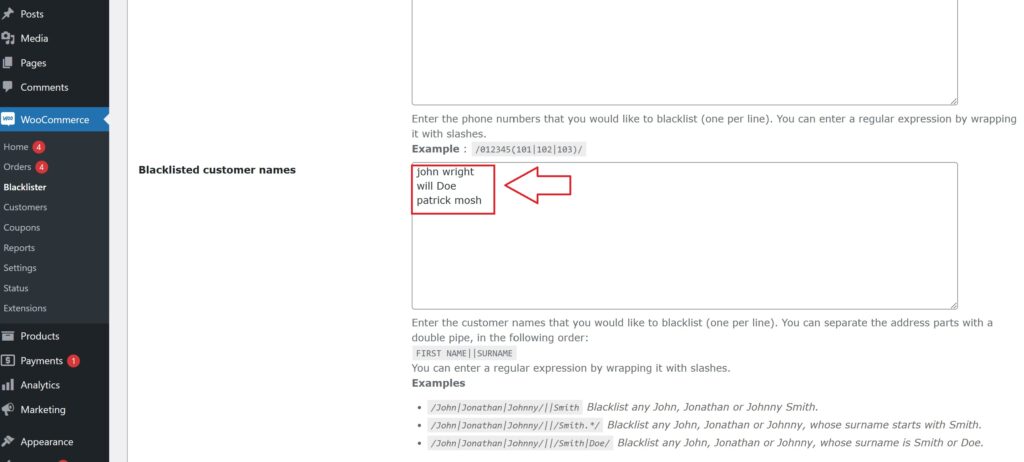
- Navigate to the Blacklist tab in the settings.
- Under Customer Name, enter the names or surnames you want to block.
- You can add exact names or use regular expressions for partial matches.
Blacklist Email Addresses:
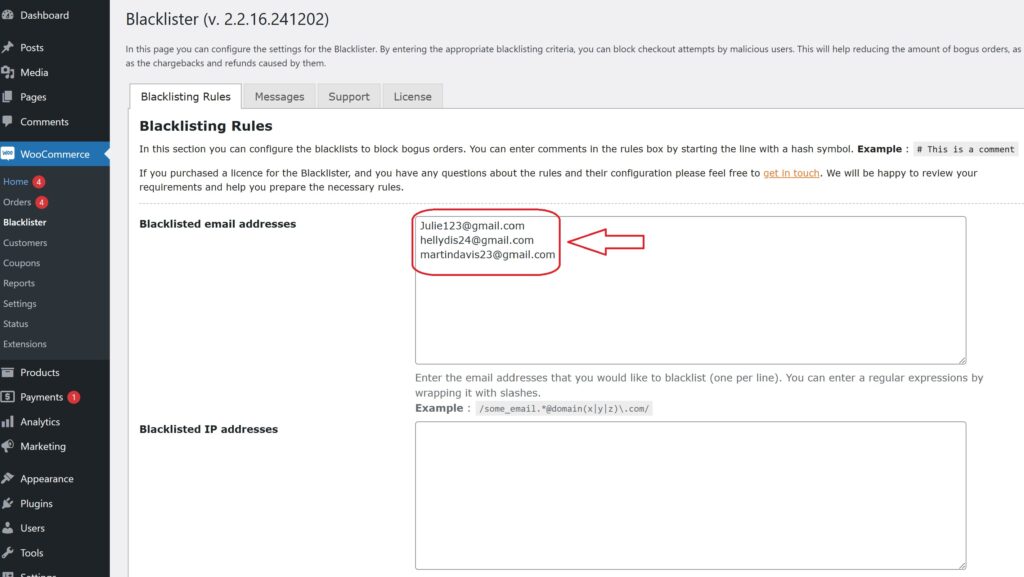
- In the Blacklist Emails section, enter the email addresses you want to block.
- You can block specific addresses or entire email domains (e.g., @fraudulentdomain.com).
- Blacklist Phone Numbers:
- In the Blacklist Phone Numbers section, add phone numbers that are linked to fraudulent activities.
- Use regex if you want to block specific phone number patterns (e.g., numbers starting with a certain prefix).
Blacklist Addresses:
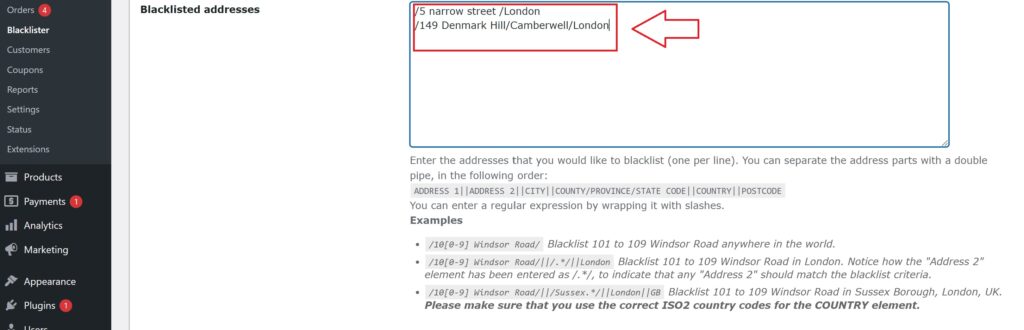
- Under the Blacklist Addresses section, you can block specific addresses or regions.
- You can specify street names, postcodes, cities, or countries that you want to prevent orders from.
Blacklist IP Addresses:
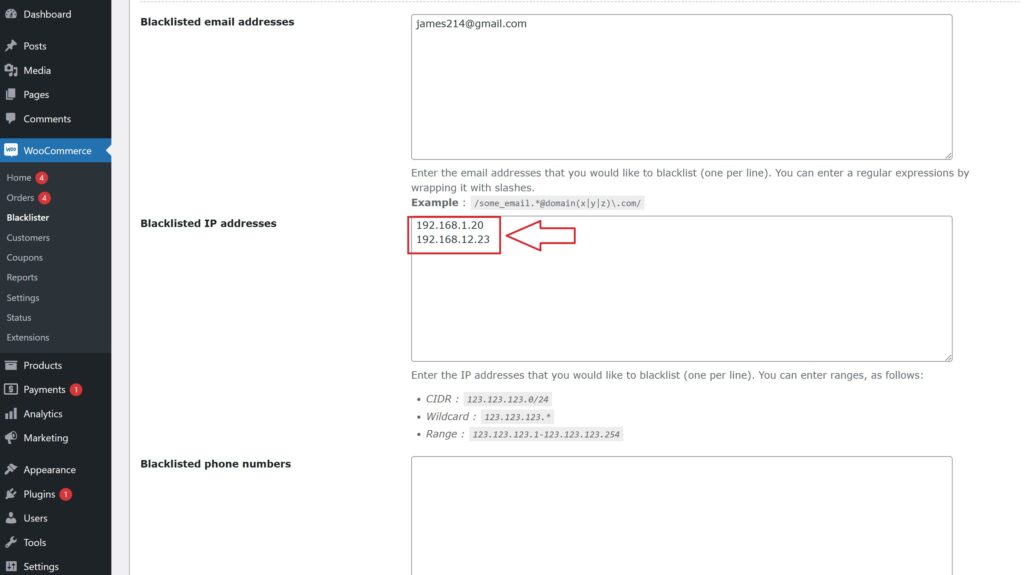
- In the Blacklist IP Addresses section, you can enter specific IP addresses or ranges.
- You can use exact matches, IP address masks (CIDR notation), or IP ranges to block fraudulent sources.
3. Customize Error Messages
When a customer is blocked, it’s important to inform them of why their order was rejected. You can customize the error message that is displayed when a match is found against your blacklist.
- Go to the Messages section in the Aelia Blacklister settings.
- Customize the message that will be shown to blocked customers. For example, you can create a message like:
- “Sorry, your order could not be processed because we detected suspicious activity linked to your account. Please contact support if you believe this is a mistake.”
This ensures that customers understand the reason behind the block and can reach out for clarification.
4. Adjust Match Criteria
Aelia Blacklister offers flexibility in how matches are detected:
- Exact Match: This will block users whose details exactly match the ones you’ve blacklisted.
- Partial Match (using Regular Expressions): This allows you to block users whose details partially match (e.g., blocking all email addresses ending with @fraudulentdomain.com).
- IP Address Range Matching: If you want to block a range of IP addresses, you can specify this in the IP address section.
5. Save and Apply the Settings
Once you have configured all the blacklist criteria and customized the error messages:
- Click on Save Changes at the bottom of the page.
- The plugin will now begin comparing customer data against the blacklisted entries during checkout.
6. Monitor and Update Your Blacklist
After configuring the Aelia Blacklister plugin, it’s important to regularly monitor and update your blacklist to stay ahead of fraud attempts.
- Check Blocked Orders:
- In the Aelia Blacklister settings, you can view a report of blocked orders, allowing you to track which customers have been flagged.
- Update the Blacklist:
- As you receive new information about scammers or fraudulent activities, update your blacklist accordingly. Regularly review and add new entries to keep your store protected.
- Adjust Criteria as Needed:
- As fraud tactics evolve, you may need to refine your matching criteria or add more entries to the blacklist.
Visit Aelia for More Plugins
To further enhance the functionality and security of your WooCommerce store, explore additional powerful plugins from Aelia. One such tool is the Currency Switcher for WooCommerce, which allows you to offer a seamless, dynamic currency exchange experience for international customers. This plugin helps create a more personalized shopping experience by automatically displaying prices in the customer’s local currency, making global transactions easier and more convenient.
Check out Aelia’s full suite of plugins for more ways to improve your store’s security, user experience, and overall performance!
